
zeldor.biz

Linux, programming and more

Copyright © 2026
Log in

Archives for September 2010

SSH trick to improve your system security

September 25, 2010 by Igor Drobot Leave a Comment

This ASCII-art graph represents your host’s public key, which uniquely identifies (or at least, it better damn should uniquely identify!) it. This representation was added mainly because it is way easier to be able to visually record the shape of your most frequently used hosts.

Enable visualization for hostkeys:

1
2
id@acer:~$ cat .ssh/config 
VisualHostKey   yes

id@acer:~$ cat .ssh/config VisualHostKey yes

1
2
3
4
5
6
7
8
9
10
11
12
13
14
15
id@acer:~$ ssh root@192.168.1.3
Host key fingerprint is b6:dc:cb:ff:33:83:aa:03:56:94:0c:bc:7f:38:cf:b7
+--[ RSA 2048]----+
|     ..o .       |
|      . +        |
|       o         |
|      . .        |
|       oS.       |
|      oo+o.      |
|     . .o=.  .   |
|        ..o.o +  |
|        .o++Eo.+ |
+-----------------+
root@192.168.1.3's password: 
Linux piper 2.6.26-2-xen-686 #1 SMP Mon Jun 21 10:37:05 UTC 2010 i686

id@acer:~$ ssh root@192.168.1.3 Host key fingerprint is b6:dc:cb:ff:33:83:aa:03:56:94:0c:bc:7f:38:cf:b7 +--[ RSA 2048]----+ | ..o . | | . + | | o | | . . | | oS. | | oo+o. | | . .o=. . | | ..o.o + | | .o++Eo.+ | +-----------------+ root@192.168.1.3's password: Linux piper 2.6.26-2-xen-686 #1 SMP Mon Jun 21 10:37:05 UTC 2010 i686

Filed Under: Bash, Linux, Networking

Cisco OSPF configuration

September 25, 2010 by Igor Drobot Leave a Comment

The command turns on the OSPF routing protocol with a process id of 1. The network line must be added to tell the router which networks will be participating in OSPF. This command can be expanded to include stub areas and not so stubby areas. That is how Cisco refers to it. You can run multiple processes of OSPF using different process ids.

1
2
router(config)# router ospf 1
router(config-router)# network 10.130.0.0 0.0.255.255 area 130

router(config)# router ospf 1 router(config-router)# network 10.130.0.0 0.0.255.255 area 130

Debug OSPF:

1
2
show ip ospf neighbor
show ip ospf interface

show ip ospf neighbor show ip ospf interface

Filed Under: Cisco, Networking Tagged With: OSPF, Routing

Shutdown batch

September 25, 2010 by Igor Drobot Leave a Comment

If I go via RDP on some windows server or clients, i hate to run CMD and type “shutdown -s” because the is no traditional shutdown button in the start menu.

I wrote this little batch, and I execute it only to shutdown…

1
2
@echo
shutdown.exe -s -t 10 -c "Now you have 10 seconds to save your work"

@echo shutdown.exe -s -t 10 -c "Now you have 10 seconds to save your work"

Filed Under: Windows Tagged With: bat, shutdown bat

Frame Relay

September 25, 2010 by Igor Drobot Leave a Comment

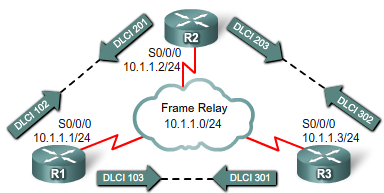
Before a Cisco router is able to transmit data over Frame Relay, it needs to know which local DLCI maps to the Layer 3 address of the remote destination. Cisco routers support all Network layer protocols over Frame Relay, such as IP, IPX, and AppleTalk. This address-to-DLCI mapping can be accomplished either by static or dynamic mapping.

The Frame Relay service provider assigns DLCI numbers. Usually, DLCIs 0 to 15 and 1008 to 1023 are reserved for special purposes. Therefore, service providers typically assign DLCIs in the range of 16 to 1007.

To map between a next hop protocol address and DLCI destination address, use this command:

1
frame-relay map protocol protocol-address dlci [broadcast] [ietf] [cisco]

frame-relay map protocol protocol-address dlci [broadcast] [ietf] [cisco]

Use the keyword ietf when connecting to a non-Cisco router.
You can greatly simplify the configuration for the Open Shortest Path First (OSPF) protocol by adding the optional broadcast keyword when doing this task.

Static FR Address Mapping:

1
2
3
4
5
6
R1 (config) # interface s0/0/0
R1 (config-if) # ip address 10.1.1.1 255.255.255.0
R1 (config-if) # encapsulation frame-relay
R1 (config-if) # no frame-relay inverse-arp
R1 (config-if) # frame-relay map ip 10.1.1.2 102 broadcast cisco
R1 (config-if) # no shut

R1 (config) # interface s0/0/0 R1 (config-if) # ip address 10.1.1.1 255.255.255.0 R1 (config-if) # encapsulation frame-relay R1 (config-if) # no frame-relay inverse-arp R1 (config-if) # frame-relay map ip 10.1.1.2 102 broadcast cisco R1 (config-if) # no shut

1
2
3
4
5
R1 (config) # interface s0/0/0
R1 (config-if) # ip address 10.1.1.1 255.255.255.252
R1 (config-if) # encapsulation frame-relay
R1 (config-if) # bandwidth 64
R1 (config-if) # frame relay map ip 10.1.1.2 102 broadcast

R1 (config) # interface s0/0/0 R1 (config-if) # ip address 10.1.1.1 255.255.255.252 R1 (config-if) # encapsulation frame-relay R1 (config-if) # bandwidth 64 R1 (config-if) # frame relay map ip 10.1.1.2 102 broadcast

1
R1 (config-if) # frame-relay lmi-type ansi

R1 (config-if) # frame-relay lmi-type ansi

Basically, the LMI is a keepalive mechanism that provides status information about Frame Relay connections between the router (DTE) and the Frame Relay switch (DCE).


US Bandwidth:

E0 64 kbit/s
E1 2.048 Mbit/s
E2 8.448 Mbit/s
E3 34.368 Mbit/s
E4 139.264 Mbit/s
E5 564.992 Mbit/s
T1 1,536 Kb/s UP and DOWN

Filed Under: Cisco, Networking Tagged With: Cisco, Frame Relay

Windows Server 2008 RDP

September 25, 2010 by Igor Drobot Leave a Comment

Windows Server 2008 is, as the name suggests, a server operating system which in the real world this means that systems running Windows Server 2008 will most likely be located in large rack systems in a server room. As such, it is highly unlikely that system administrators are going to want to have to physically visit each of these servers to perform small routine administrative tasks such as create a new system user…

To invoke the Remote Desktop Client in virtual session mode either select Start -> All Programs -> Accessories -> Remote Desktop Connection or enter the following in the Run dialog or at a command prompt:

1
mstsc

mstsc

To start the Remote Desktop Client in administrator mode try this one out:

1
mstsc /admin

mstsc /admin

Filed Under: Networking, Windows Tagged With: R2, RDP, Remote, Windows Server 2008

  • « Previous Page
  • 1
  • 2
  • 3
  • 4
  • Next Page »
Yeaaah Cookie! We use cookies to ensure that we give you the best experience on our website. If you continue to use this site we will assume that you are happy with it.