
Monthly Archive for November, 2010

Page 2 of 4

Backup WordPress to Dropbox

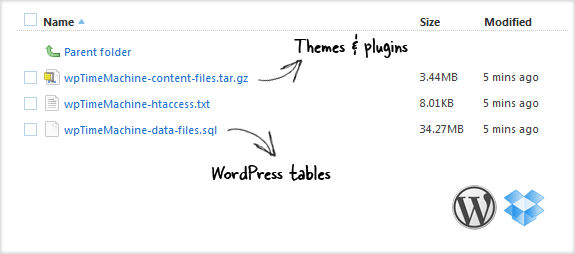
And I’m still fascinating of the Dropbox service. I found another useful plugin for WordPress wpTimeMachine that makes Backuping easy for you. It makes a backup to your existing Dropbox account.

This plugin can perform an automatic backup of your Word Press MySQL-database your themes, plug-ins and all the other files and images that you may uploaded to your Word Press folder.
Continue reading ‘Backup WordPress to Dropbox’

Dropbox

Some days ago I found a new useful service for me – Dropbox

Dropbox is a online service that allows you to sync your files online and across your all computers automatically.
For example to share my work progress over the internet to you home work-pc.

Benefits:
* File-Syncing between multiple computers
* Intuitive usage
* Cross platform support and usage – Windows, Linux and Mac
* No complicated interface – runs in the background and access via your regular file browser.
* Access from anywhere where you have internet
* Share your files with other users/pc’s
* Show photos to friends in a gallery

Continue reading ‘Dropbox’

Nagios3 with Lighttpd

Why I do it?
Cause my Nagios3 is running as a virtual machine on a Xen Server, and I have less than 64MB of RAM.

First I install lighttpd, to prevent automatically apache2 installation during the nagios3 installation:

1
aptitude install lighttpd

Continue reading ‘Nagios3 with Lighttpd’

Windows 7 – Enable Telnet

Telnet

It’s very rare that I use telnet these days, so it took some time for me to notice that by default it was not packaged with Windows 7.

Enable Telnet:

1. Start
2. Control Panel
3. Programs And Features
4. Turn Windows features on or off
5. Check Telnet Client
6. Hit OK

Introduction to LVM

hdd

physical volumes:
o These are your physical disks, or disk partitions, such as /dev/hda or /dev/hdb1. These are what you’d be used to using when mounting/unmounting things. Using LVM we can combine multiple physical volumes into volume groups.

volume groups:
o A volume group is comprised of real physical volumes, and is the storage used to create logical volumes which you can create/resize/remove and use. You can consider a volume group as a “virtual partition” which is comprised of an arbitary number of physical volumes.

logical volumes:
o These are the volumes that you’ll ultimately end up mounting upon your system. They can be added, removed, and resized on the fly. Since these are contained in the volume groups they can be bigger than any single physical volume you might have. (ie. 4x5Gb drives can be combined into one 20Gb volume group, and you can then create two 10Gb logical volumes.)

1
aptitude update && aptitude install lvm2
1
pvcreate /dev/md0

Once we’ve initialised the partitions, or drives, we will create a volume group which is built up of them:

1
vgcreate storm /dev/md0

If you’ve done this correctly you’ll be able to see it included in the output of:

1
vgscan

Create your first logical volume:

1
lvcreate -n data --size 300g storm

Your new logical volume will be accessible via:

1
2
3
/dev/storm/data
# or
/dev/mapper/storm-data

Create file system:

1
mkfs.ext3 /dev/storm/data

Show created volumes and their sizes:

1
lvdisplay

Extend volume:

1
lvextend -L+10g /dev/storm/data

After resizing you should resize the filesystem:

1
2
e2fsck -f /dev/storm/data 
resize2fs /dev/storm/data

Remove volume:

1
lvremove /dev/storm/data

If you need some visual help you can use: “system-config-lvm” utility co configure LVM.